ads

Showing posts with label Hacking Tricks. Show all posts

Thursday, 5 January 2012

How to find the “real” IP address of a web site?

You can use the PING utility included with Windows to determine the “real” IP address of a web site. Before using this utility, make sure you are not mapping a host name to some IP address with HostName Commander, because if you do, the PING utility will show the address you’ve set up with HostName Commander, instead of the “real” IP address.

To run the PING utility, click on the Windows Start button, and choose Run from the Start Menu. If you use Windows 95,98, or Me, enter “command” (without the quotes) as the command line to run. If you use Windows XP,2000, or NT, enter “cmd” (again, without the quotes). Click OK and the command prompt window should appear on the screen.

Now enter the word “ping” (without the quotes) followed by a space, followed by the host name you want to determine the IP address of, and press Enter:

ping.jpg

In this example, the IP address of the host name www.rkgit.edu.in is 74.52.201.2 & IP Address of the host name www.kiet.edu is 220.225.19.55 . (Keep in mind that the IP address may change in the future!). If the PING utility reports an error, make sure your computer is connected to the Internet when you are running it.

Saturday, 31 December 2011

Happy New Year


This New Year [2012], start recycling things......
but at first RECYCLE YOURSELF....

RECYCLE YOUR THOUGHTS
RECYCLE YOUR ATTITUDE
RECYCLE YOUR HABITS
RECYCLE YOUR EVERYTHING which can change you into a BETTER PERSON...

Happy New Year to all
Team Dt

Friday, 25 November 2011

Multiple Login in Google Talk!

►Multiple Login in Google Talk!◄
Follow these simple steps.........

* Create a shortcut of your Google talk.

* Right click the shortcut ----> choose Properties.

* In the "Target" you will find this "C:\Program Files\Google\Google Talk\googletalk.exe"

* Now at the end of target add this "/nomutex" without the quotes. It should be like this "C:\Program Files\Google\Google Talk\googletalk.exe" /nomutex There is a space after googletalk.exe"

Thats it .Click OK and you can open more than one Google talk.


► Multiple Login in Yahoo messenger!◄

You can login with multiple ID's on the same yahoo messenger.

Follow these steps : ==>>

* Go to Start ==> Run ==>> Type regedit,hit enter

* Go to HKEY_CURRENT_USER ==>> Software ==>> Yahoo ==>> pager ==>>Test

* On the right pane ==>> right-click and choose new Dword value .

* Rename it as Plural.

* Double click and assign a decimal value of 1.

* Now close registry and restart yahoo messenger.

* For signing in with new id open another messenger

Nokia Universal Codes

Nokia Universal Codes

Code Description :
These Nokia codes will work on most Nokia Mobile Phones

(1) *3370# Activate Enhanced Full Rate Codec (EFR) - Your phone uses the best sound quality but talk time is

reduced my approx. 5%

(2) #3370# Deactivate Enhanced Full Rate Codec (EFR) OR *3370#

(3) *#4720# Activate Half Rate Codec - Your phone uses a lower quality sound but you should gain approx 30%

more Talk Time.

(4) *#4720# Deactivate Half Rate Codec.

(5) *#0000# Displays your phones software version, 1st Line : Software Version, 2nd Line : Software Release

Date, 3rd Line : Compression Type.

(6) *#9999# Phones software version if *#0000# does not work.

(7) *#06# For checking the International Mobile Equipment Identity (IMEI Number).

(8) #pw+1234567890+1# Provider Lock Status. (use the "*" button to obtain the "p,w"
and "+" symbols).

(9) #pw+1234567890+2# Network Lock Status. (use the "*" button to obtain the "p,w"
and "+" symbols).

(10) #pw+1234567890+3# Country Lock Status. (use the "*" button to obtain the "p,w"
and "+" symbols).

(11) #pw+1234567890+4# SIM Card Lock Status. (use the "*" button to obtain the "p,w" Go to Top
and "+" symbols).

(12) *#147# (vodafone) this lets you know who called you last.

(13) *#1471# Last call (Only vodofone).

(14) *#21# Allows you to check the number that "All Calls" are diverted to

(15) *#2640# Displays security code in use.

(16) *#30# Lets you see the private number.

(17) *#43# Allows you to check the "Call Waiting" status of your phone.

(18) *#61# Allows you to check the number that "On No Reply" calls are diverted to.

(19) *#62# Allows you to check the number that "Divert If Unreachable (no service)" calls
are diverted to.

(20) *#67# Allows you to check the number that "On Busy Calls" are diverted to.
(21) *#67705646# Removes operator logo on 3310 & 3330.

(22) *#73# Reset phone timers and game scores.

(23) *#746025625# Displays the SIM Clock status, if your phone supports this power saving feature "SIM Clock Stop

Allowed", it means you will get the best standby time possible.

(24) *#7760# Manufactures code.

(25) *#7780# Restore factory settings.

(26) *#8110# Software version for the nokia 8110.

Go to Top

(27) *#92702689# Displays - 1.Serial Number, 2.Date Made, 3.Purchase Date, 4.Date of last repair (0000 for no

repairs), 5.Transfer User Data. To exit this mode you need to switch your phone off then on again. ( Favourite )

(28) *#94870345123456789# Deactivate the PWM-Mem.

(29) **21*number# Turn on "All Calls" diverting to the phone number entered.

(30) **61*number# Turn on "No Reply" diverting to the phone number entered.

(31) **67*number# Turn on "On Busy" diverting to the phone number entered.

(32) 12345 This is the default security code.


Sunday, 23 October 2011

How to Block Ads in Android Browsers and Apps


If you're sick of giant ads taking up space on your tiny phone's screen, there are a number of ways to banish them from your phone. Here's how to do it.
While we generally support advertisements—after all, it's how us Lifehacker writers make our living—they can make browsing annoying on some sites, especially on a such a little screen (and they can make some apps very difficult to use). Which method you use depends largely on whether you're rooted or not, so we've rounded up the two best methods for blocking ads on your phone.

For Rooted Phones: AdAway

By far the best ad blocking solution is AdAway, which will block ads from most known sources, both in your browser of choice and in the apps you use. Just download it, start it up, and hit the "Download files and apply ad blocking" button. It'll download a few host files and merge them into your phone's, blocking those apps from ever reaching your device. You may need to reboot after you do this. You can also disable ad blocking at any time, but again, you'll have to reboot whenever you make changes.
If you have a particular site that's still showing ads, you can find out the domain of that ad (for example, ads.doubleclick.net and add it to AdAway's blacklist. To do so, open up AdAway, hit Menu, and go to Lists. Navigate to the Black tab, hit Menu, and tap the Add button. Type inads.doubleclick.net and click Add. Those ads should stop showing up after a reboot.
Similarly, blocking ads can mess with certain apps and make them unusable (The popular Words with Friends game is a good example). To whitelist those ads, go back to Menu > List and hit the White tab. Go to Menu > Add to add a new domain, and add the domain of the ads it's trying to show—in the case of Words with Friends, it would be androidsdk.ads andmydas.mobi. Note that you can only add advertising domains on the whitelist, not the sites on which the ads appear. That is, if you wanted to whitelist ads on Lifehacker, you couldn't just addlifehacker.com to your whitelist—you'd have to add ad.doubleclick.net, where our ads are hosted. If you ever decide to uninstall AdAway, remember to disable ad blocking first, otherwise your phone will continue to block ads with no way to turn it off.
Remember also that this blocks ads within apps. This can be convenient, but we recommend you support app developers you like, either by whitelisting their ads or by buying the premium version of their app. App developers gotta eat too.

For Unrooted Phones: Browser-Based Ad Blockers

Unfortunately, if you aren't rooted, you don't have nearly as many choices. You pretty much have to block ads through your browser, and only a few browsers currently support this. Firefox is the easiest method—just download Firefox, and add the Adblock Plus extension, which you can grab from the add-ons page in Firefox's settings.
Opera Mobile is the other choice. Reader Nitesh discovered that you can create your own adblock filter for Opera with a simple text file. First, create a file calledurlfilter.ini somewhere on your SD card (I put mine in Opera's folder), and copy the text from this pastebin page. You can also grab updated filters <a href="this page">here, though the pastebin page contains the full code you need to make the urlfilter.inifile recognizable. Paste that text it into theurlfilter.ini file on your SD card. It's usually easiest to do this from your computer, after plugging in your device and enabling USB mode.
Then, disconnect your phone and open up Opera. Type opera:config in the URL bar and search for "URL Filter". You should see an option to tell Opera where your URL filter file is. Tap that box, then hit the back button until you're at the root of your phone (which it recognizes as a simple /). Then go to /mnt/sdcard and navigate to the urlfilter.ini you just created. After a reboot, you should find that Opera is ad-free.
Sadly, there aren't more methods to block ads on Android, but these should help get most of you by. Got any of your own ad-blocking solutions we didn't mention? Be sure to share them in the comments.

How To Enable Facebook Timeline


timeline
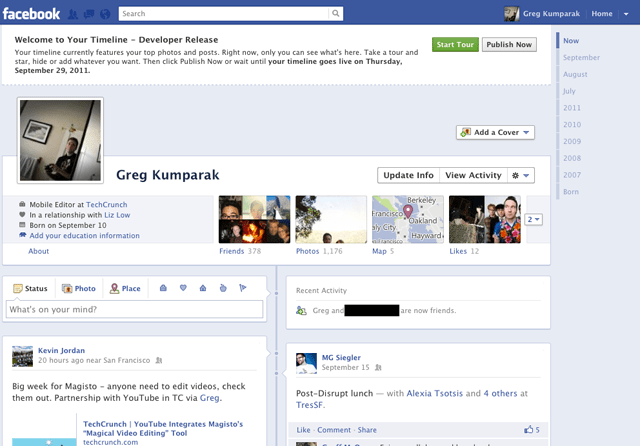
Few days back Facebook announced Timeline, a crazy (and kind of creepy) omnibus look at everything that has ever happened in your Facebook lifespan. It’s like a story book of your life — or at least the online, documented parts.
Facebook said that Timeline would be on the way for everyone sometime in the coming weeks… which is great and all, for everyone else. You’re the type of person who reads TechCrunch, and are thus likely the type of person who likes their new and shiny things right now.
That’s okay. We can make it happen.
Fortunately, enabling Timeline a bit early isn’t too difficult — but it’s not at all straight forward, either.
You see, Facebook is enabling Timeline early for open graph developers. You, too, can be an open graph developer — even if you’re just looking to dabble.
A few things to note:
- You probably don’t want to do this unless you’re actually a developer. Expect bugs.
- Only you will see your timeline at first (unless you decide otherwise), but it will automatically go public after a few days. My timeline was automatically hard-set to go public on September 29th.
- It seems that if you login into Facebook on another machine, Timeline gets disabled automatically on all of your machines. With that said, it seems you can get back to your timeline (but ONLY after following the steps below) by navigating to http://www.facebook.com/YOURUSERNAMEHERE?sk=timeline
- You’ll need to have a “verified” account for one of the steps, which means you need a credit card or phone number attached to the account.

Here’s how to do it:

1. Log into Facebook
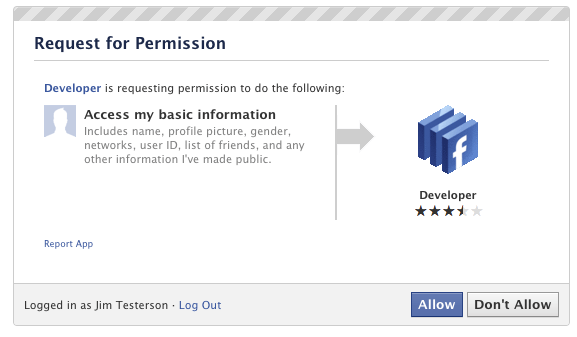
2. Enable developer mode, if you haven’t already. To do this, type “developer” into the Facebook search box, click the first result (it should be an app made by Facebook with a few hundred thousand users), and add the app.
3. Jump into the developer app (if Facebook doesn’t put you there automatically, it should be in your left-hand tool bar)
4. Create a new app (don’t worry — you wont actually be submitting this for anyone else to see/use). Give your shiny new app any display name and namespace you see fit. Read through and agree to the Platform Privacy agreement. This is the step you need to be verified for.
5. Ensure you’re in your new app’s main settings screen. You should see your app’s name near the top of the page
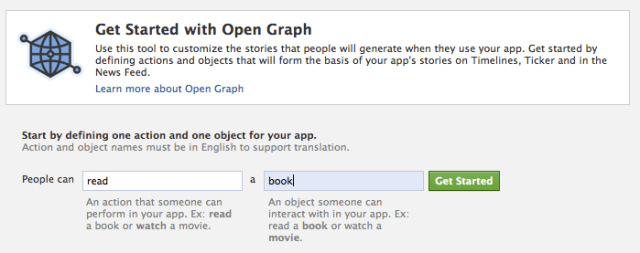
6. Look for the “Open Graph” header, and click the “Get Started using open graph” link.
Create a test action for your app, like “read” a “book”, or “eat” a “sandwich”
7. This should drop you into an action type configuration page. Change a few of the default settings (I changed the past tense of “read” to “redd” — again, only you can see this unless you try and submit your application to the public directory), and click through all three pages of settings
8. Wait 2-3 minutes
9. Go back to your Facebook homescreen. An invite to try Timeline should be waiting at the top of the page
And you’re done! We’ve seen this work quite a few times now, so it should work without a hitch for just about anyone.

Twitter Delicious Facebook Digg Stumbleupon Favorites More